
This article has been translated with machine translation.
Navigate to:
Overview > Restriction and prohibition lists > Select a list > Manage
or
iSafe > Edit > Restriction and prohibition lists > Manage
This article covers
- Why does a product match a restriction list?
- See the reason for a match on the list
- Exclude products from restriction lists
- Via the Overview
- Via iSafe
- Verify and comment on products on restriction lists
- Include a product on a restriction list
- Permissions
Why does a product match a restriction list?
iChemistry automatically reads the product's safety data sheet (SDS) and identifies the substances and classifications stated in it. This information is then matched against the restriction and prohibition lists that are activated in your system. In other words, it is not Intersolia that decides whether a product ends up on a list; the matching is based on what is actually stated in the SDS.
Each list has fixed criteria, for example CAS/EC numbers, the classification of substances or hazard statements. For most lists, matching takes place regardless of concentration and how the product is used. Some lists, however, have a concentration limit built into the matching. On these lists, a product is only picked up if the substance is present at a concentration above the limit, for example >0.1%. If a list has such a concentration limit, this is stated in the information box for the list.
The lists are indicative. A match shows which products you need to look at more closely, not that the requirements automatically apply. You need to assess for yourselves whether the requirements apply to your product, based on the concentration of the substance and how the product is used in your organisation. You can then choose to exclude the product, verify the match or document your assessment with a comment.
If information is missing from the SDS, for example CAS numbers in section 3, the product may instead miss a list it should be on. In that case, you can include the product manually. You can read more about this further down.
See the reason for a match on the list
Overview > Restriction and prohibition lists > Select a list > Click the cogwheel (Manage) for a product
In the Manage view, under the heading "Reason for match", you can see why the product matches the list.
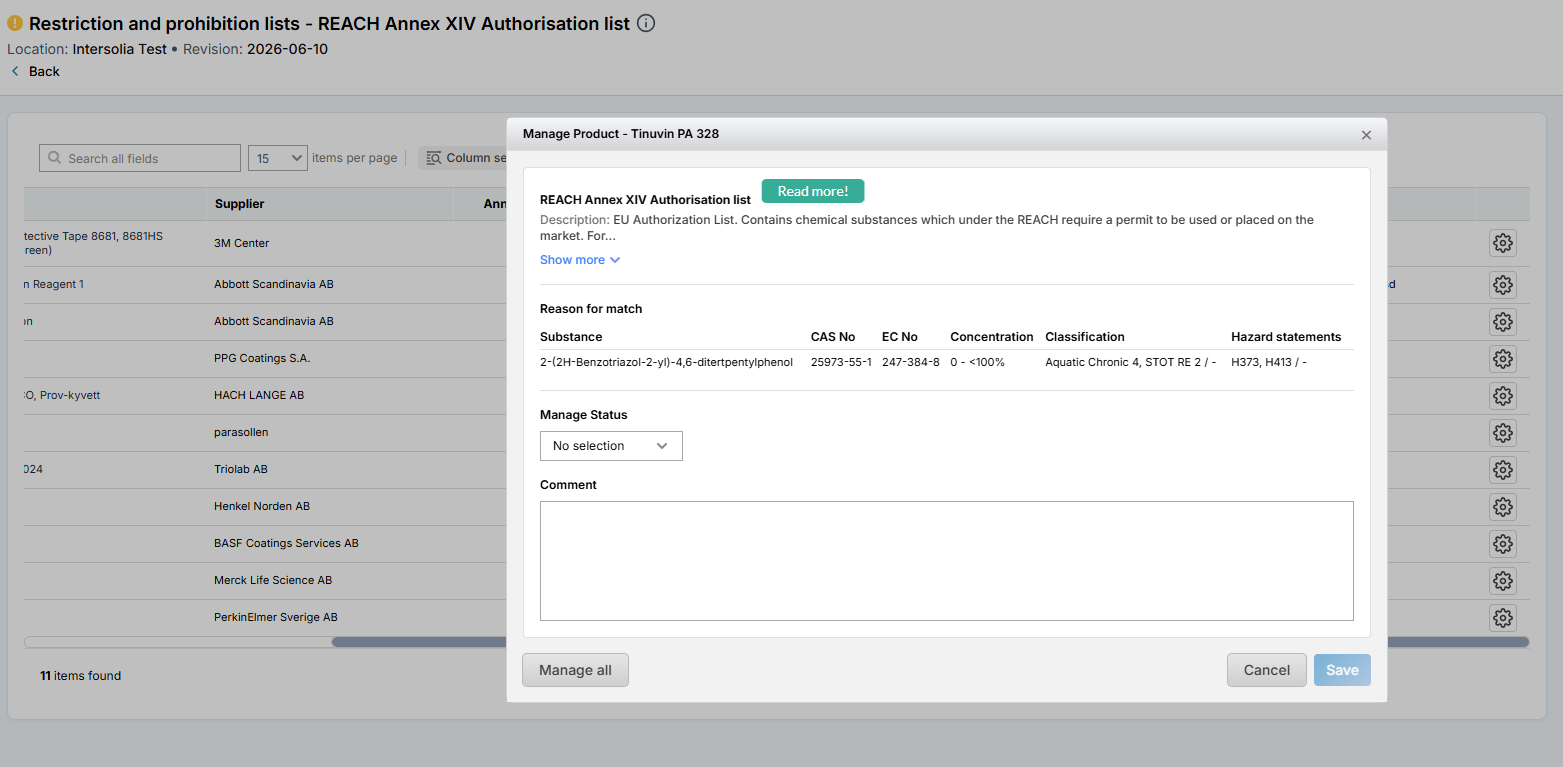
In the same view, you can click "Manage all" to see whether the product matches other restriction lists, and what causes the match on each list. You can verify, comment on or exclude the product for each list from here, without having to open the product's iSafe.
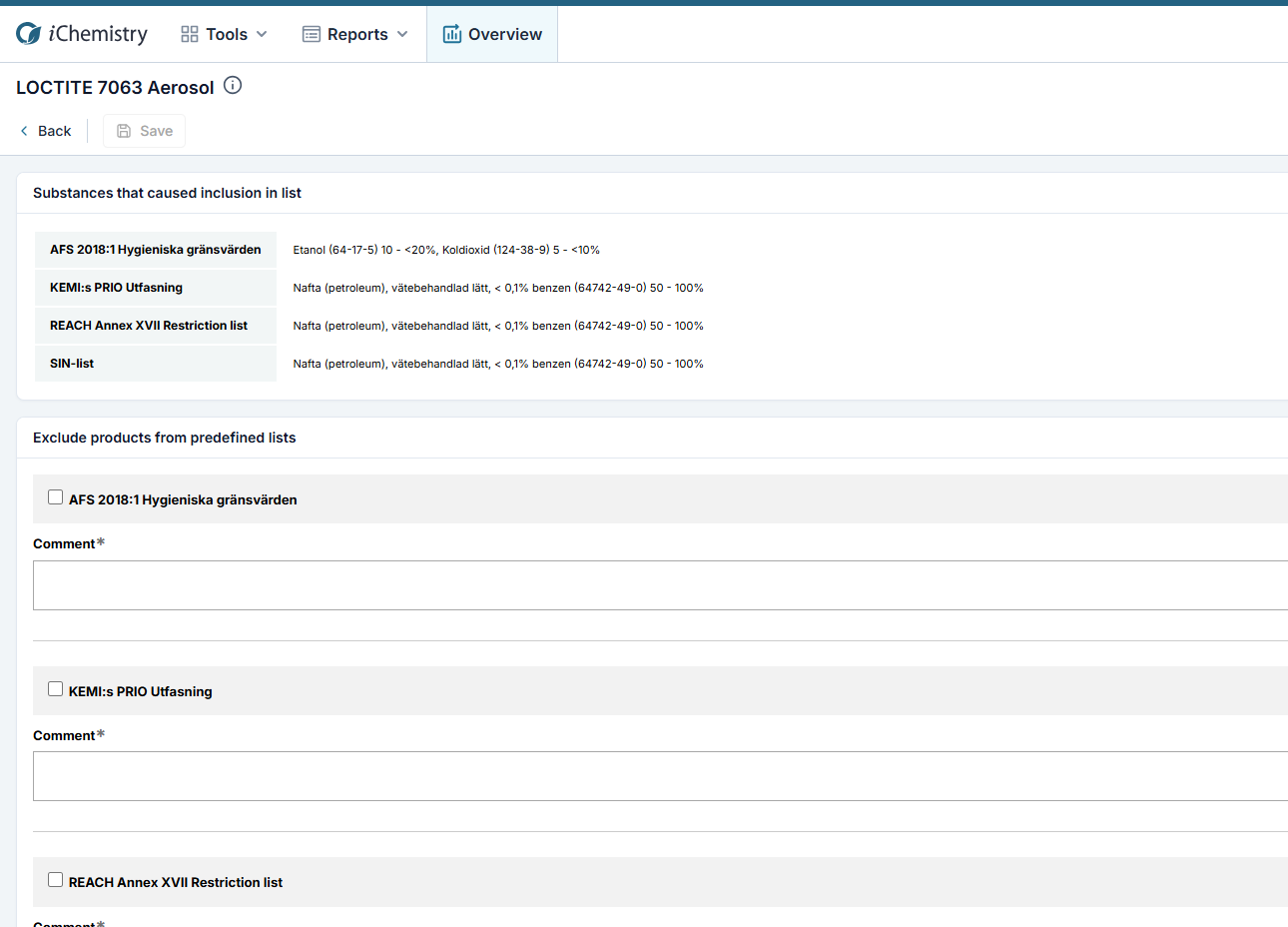
Once you have made a selection in one of the other lists, click "Save".
Tip: Use the Concentration column when assessing whether the requirements of the list apply to your product.
Exclude products from restriction lists
If you assess that a product is not covered by the requirements of a list, you can exclude it. The product is then deducted from the total number of products on the list in the Overview, but is still shown in the list as "Excluded". Always write a comment explaining why the product is excluded, so that the assessment is documented.
Go to the Overview and select a list under Restriction and prohibition lists.
Click the cogwheel in the Manage column for the product. Check under Reason for match which substance, classification or hazard statement causes the match. Then choose to exclude the product, write a comment and click Save.
If the product also matches other lists, you can exclude it from those lists in the same view.
Search for the product and open the product's iSafe. Click Edit, go to Restriction and prohibition lists and click Manage. Select the list the product should be excluded from, write a comment and click Save.
Once you have saved, iSafe shows that the product is excluded.
Same result wherever you exclude
It does not matter whether you exclude the product via the Overview or via iSafe. The change is saved on the product and is shown immediately in both places. A product excluded in iSafe is therefore shown as "Excluded" in the list in the Overview, and vice versa.
If the product receives a new safety data sheet
If an excluded product receives a new, updated SDS, this is shown as a notification under Overview > To do: "Products with a new SDS that have been excluded from a predefined list". The product remains excluded, but we recommend that you check the reason for the match again, as substances or concentrations may have changed.
If you want to include the product again, go the same way via "Manage" and remove the exclusion.
Verify and comment on products on restriction lists
In the Manage view you can also verify a product or leave a comment without excluding it. Verifying means that you have checked the match and confirm that the product should remain on the list.
A comment is valuable when you have carried out an investigation and want to document the result and conclusion, for example the concentration of the substance and why you assess that the requirements do or do not apply. You can comment on the match for each list the product matches, including the other lists in the Manage view.
Don't forget to click Save after you have made your choices or left a comment.
Include a product on a restriction list
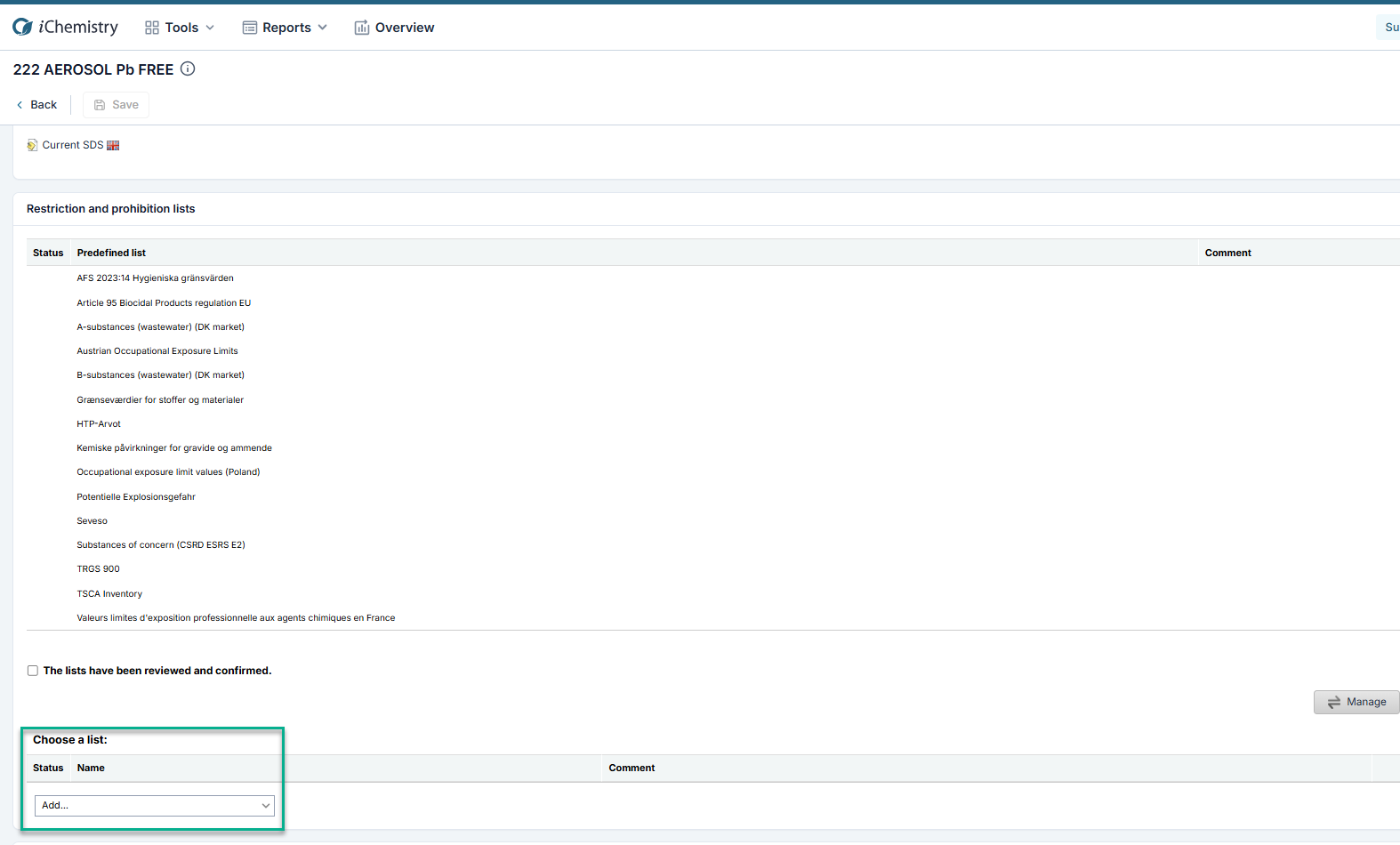
If a product is not on a list but you want it to be, you can include it manually. This may be needed, for example, if the supplier has sent an SDS with incomplete information, so that the system has nothing to match against, such as missing CAS numbers in section 3.
Go to the product's iSafe > Edit > Restriction and prohibition lists, select a list in the drop-down menu and click Save.
Permissions
What you can do in the Manage view is controlled by the permission Exclude from restriction and prohibition lists.
Read permission
See substance, concentration and other lists: Yes
Verify, comment and exclude: No
Full permission (write)
See substance, concentration and other lists: Yes
Verify, comment and exclude: Yes
Contact your administrator if you need your permissions changed.
While efforts have been made to ensure accuracy, this translation may not be entirely error-free. Please consider this when interpreting the information.
The content of this article is protected by copyright and may not be reproduced without permission. ©